Your plants
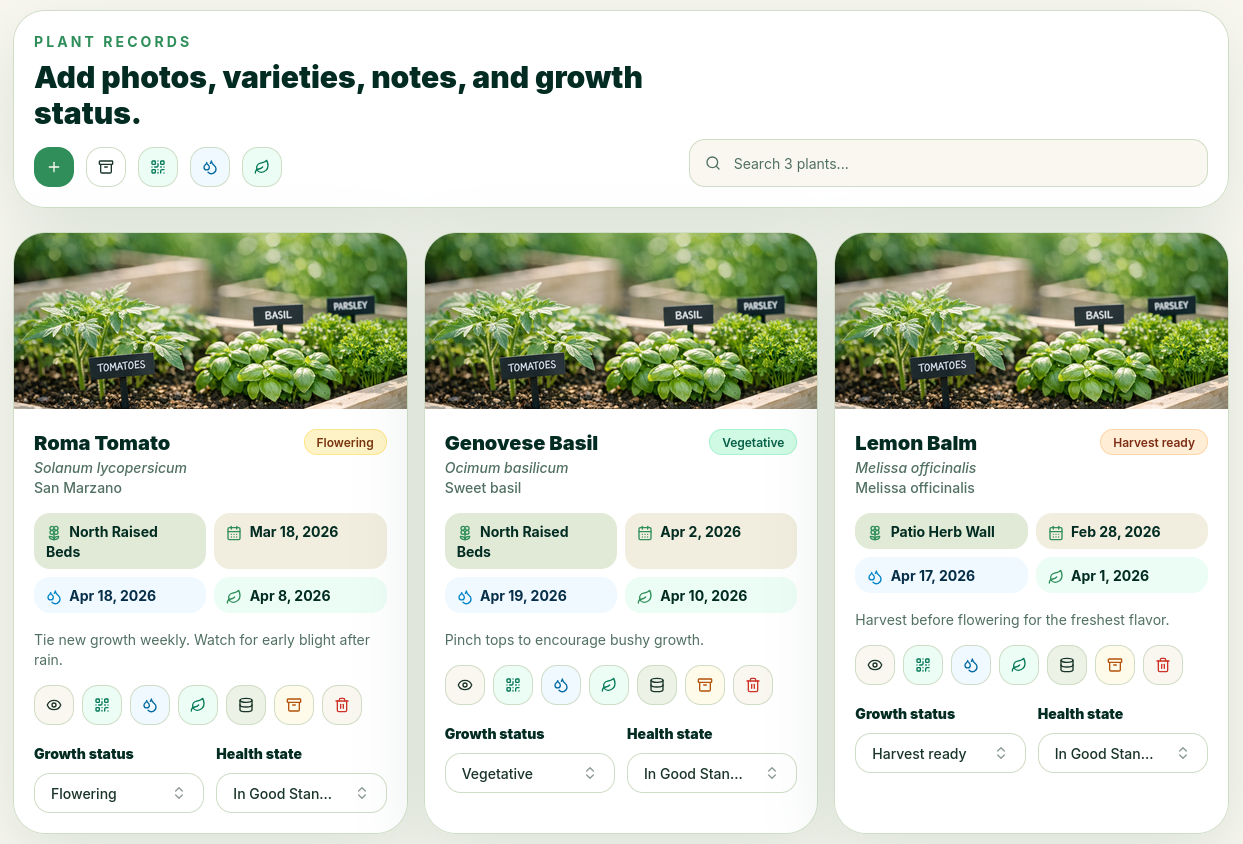
Here are all the plants you've created. On each plant card, you can quickly see important information.
You can see, among other things, when you planted it (date with a calendar icon), when it was last watered (date with a water icon), and when you last fertilized it (date with a leaf icon)
In addition, you can open the plant details directly from a plant card by tapping the button with an eye on it. The button with a water droplet lets you mark the plant as watered. The button with a leaf on it marks the plant as fertilized. You can tap the database button if you want to add the plant to the plant database so everyone can see it and create their own version of it. And you can tap the red button with the trash can to delete the plant.
Last but not least, you can change the plant's status. You should update these as the plant progresses through its growth stages, and OlsGrow will calculate the percentage remaining until the next care cycle.
QR Codes
You can print QR codes for all the plants you have by tapping the QR code button. You can then scan them using the built-in QR code reader.
Quickly Water & Fertilize Everything
You can quickly mark all your plants as watered and fertilized by tapping the corresponding button at the top. That way, you don’t have to go through them one by one if they’ve all been watered at the same time.
New Plant
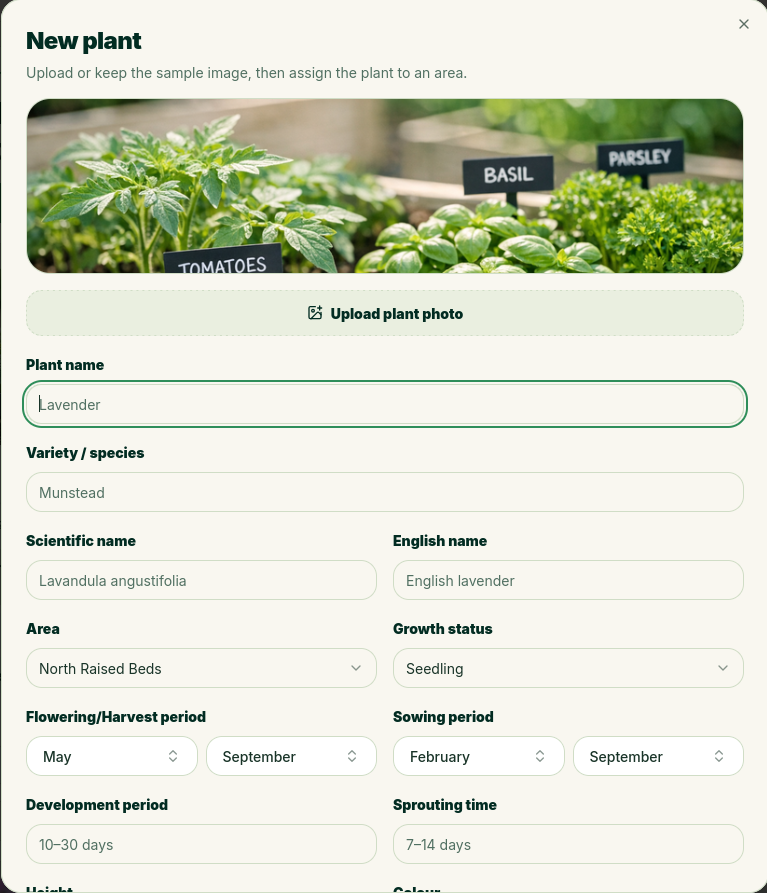 When you create a new plant, fill in as much information as possible.
The information about the plant is used when it is added to the plant database. The sowing period, for example, is used when you plan a future crop. And if you’ve set a year in your plan, OlsGrow will automatically notify you when it’s time to start planting the plant—provided you’ve added it to the database first.
Sprouting time Time & Development period
Here you can enter a value such as 5–10 days or perhaps 3 months. To enable OlsGrow to calculate an estimated date for this, this can be configured under workspace settings, the algorithms to be used. Read more about this under Other Settings. However, if you enter 5–10 days, the system will calculate that date based on when you planted the plant.